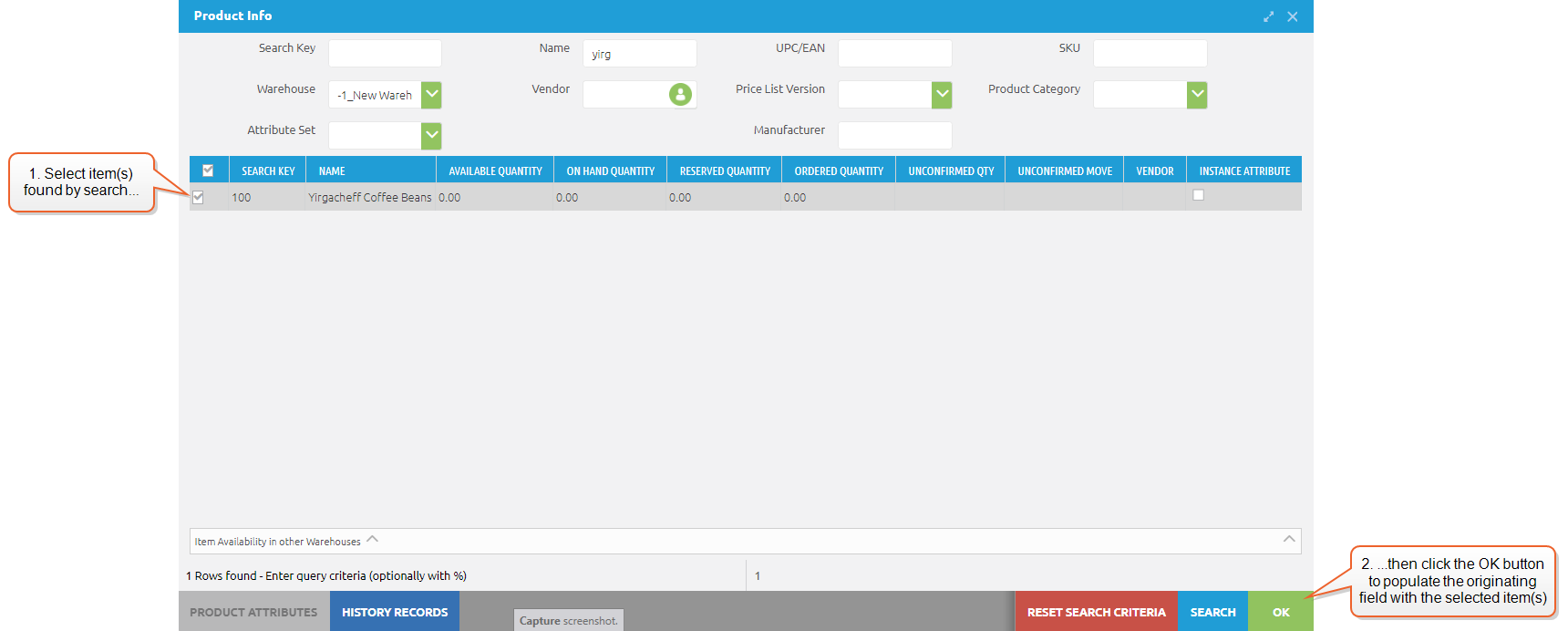
Item Search Window
The item search window is an option when entering into fields that may have a very large number of potential choices. In some cases, simply typing a few characters and selecting from the drop-down list is the easiest way to input an item. But other cases, there may be a very large number of similar items, or there may be additional attributes to the item that you want to search on.
An example for this type of search window can be seen by clicking on the portrait icon  in the VENDOR field on a PO, or on the package icon
  when selecting a product.
There are two stages to using this type of search: The search itself, which is done by populating one or more of the search fields and clicking on the SEARCH button on the lower right, and then the selection of the items found by the search, using the check boxes next to each item line and then the OK button. For example, in the image below, we have arrived at this item search window by clicking on a package icon, and wish to search for a product. We have entered the letters "yirg" into the Name field, and clicked on the SEARCH button. This returned product record in the system that has those characters in the name. We can then select the item (or items) that we want to enter into the originating field by clicking on the check box for that item and clicking the OK button.